
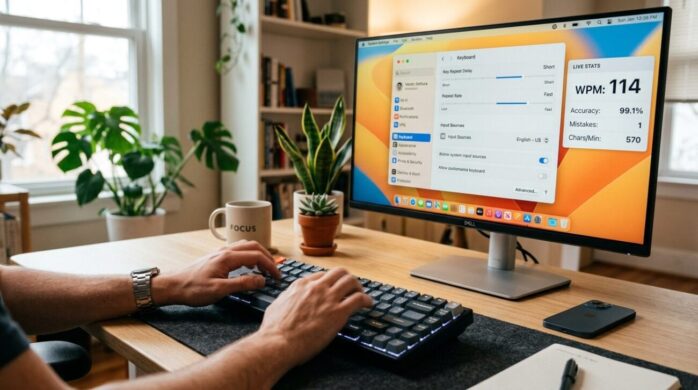
A surprising number of people type every day without ever touching their keyboard settings. Studies on workplace productivity often show that typing speed and accuracy directly influence how quickly tasks get finished, especially in jobs that involve communication, coding, writing, or data entry. Small configuration changes can remove friction that slows your hands down.
Think about the last time you mistyped a word, held a key too long, or had the keyboard repeat letters unexpectedly. Those tiny interruptions add up over time.
Adjusting keyboard settings for better speed and accuracy is less about learning a new skill and more about shaping the keyboard to match how you already type.
Several built in options exist on most operating systems. When configured properly they improve rhythm, reduce typing errors, and help your fingers move more naturally across the keys.
Fine tune key repeat delay and repeat rate
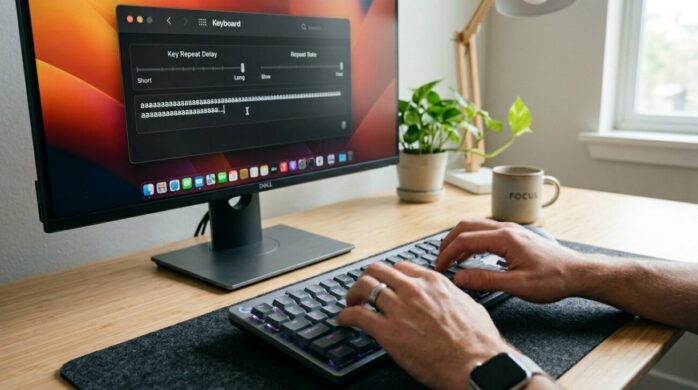
One of the most overlooked adjustments involves key repeat delay and repeat rate. Those two settings determine how long a key must be held before repeating and how quickly repeated characters appear.
A faster typist often benefits from a shorter delay and moderate repeat rate. Slower typists usually prefer a slightly longer delay to prevent accidental repeats.
Input tools can also influence typing comfort. For example, many users who type Chinese rely on 搜狗输入法 (Sogou Input Method) because its AI powered prediction adapts to natural language patterns.
Typing becomes fluid and responsive, almost like the keyboard anticipates the next word before the user finishes thinking about it. The system reduces lag and helps maintain momentum when writing long messages or documents.
To adjust repeat settings effectively, follow this approach:
- Increase repeat delay if letters often duplicate unintentionally
- Increase repeat rate gradually until scrolling or deleting text feels smooth
- Test typing in a document for several minutes after each adjustment
Small changes make a noticeable difference, so gradual adjustments usually work best.
Improve typing accuracy with prediction and autocorrect tools
Prediction systems analyze typed patterns and suggest likely words. Autocorrect automatically replaces common spelling errors. Both tools can speed up typing when configured correctly.
The effect varies depending on the language and keyboard software used. Some systems allow detailed control over correction behavior.
| Setting | Purpose | Recommended Use |
| Autocorrect | Fixes common spelling mistakes | Keep enabled but review correction list |
| Word prediction | Suggests next word | Helpful for long messages or emails |
| Learning dictionary | Adapts to personal vocabulary | Enable so the system remembers frequently used words |
After enabling prediction features, spend time customizing the dictionary. Removing incorrect suggestions prevents unwanted replacements and improves accuracy.
Users who write specialized vocabulary such as technical terms often gain significant speed improvements once the keyboard learns their writing patterns.
Choose the right keyboard layout and language switching method
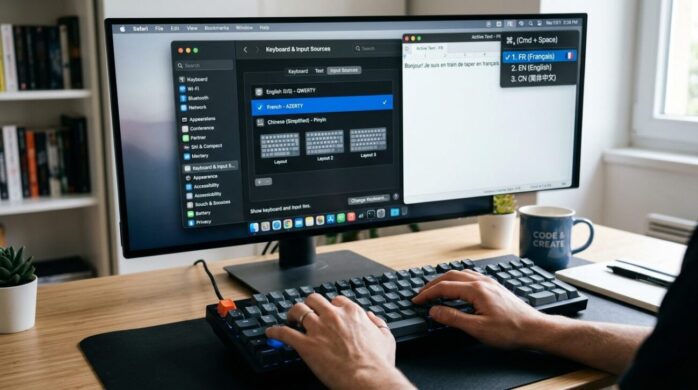
Keyboard layout determines how characters map to keys. Standard layouts work well for many people, yet alternative layouts sometimes reduce finger travel and increase comfort.
Common layouts include QWERTY, AZERTY, and several optimized layouts designed for efficiency. Selecting the correct layout matters even more for bilingual users who switch between languages.
Many operating systems allow quick language switching with shortcuts. Configuring a comfortable shortcut prevents interruptions during typing.
Important note
Input systems that support predictive typing and language modeling often increase typing efficiency because they reduce the number of keystrokes needed for full words.
Consistency matters more than complexity. A layout that feels natural will always outperform one that promises theoretical speed improvements but feels awkward.
Once a layout is selected, stick with it long enough for muscle memory to develop.
Adjust keyboard sensitivity and hardware response
Mechanical keyboards and some laptop keyboards allow sensitivity adjustments. Those settings determine how quickly a keystroke registers and how much pressure is required.
Sensitivity tuning can reduce fatigue and typing errors, especially for people who type for hours each day.
Before adjusting hardware response settings, consider the following factors:
- Actuation distance determines how far the key must travel before activation
- Debounce time prevents accidental double presses
- Key pressure affects comfort during long writing sessions
- Backlight visibility helps maintain accuracy in low light environments
Testing different configurations helps identify the best balance between speed and control.
A slightly lighter actuation force often improves typing speed, while stronger resistance may increase accuracy for users who tend to press keys too hard.
Build speed through practice with optimized settings
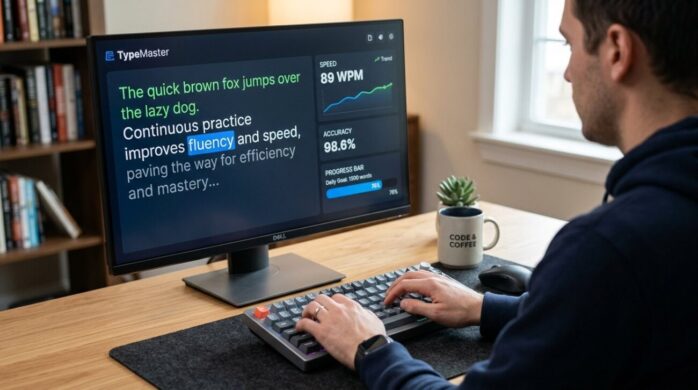
Even perfect keyboard settings require practice to reach their full benefit. After adjusting keyboard settings for better speed and accuracy, spending time typing regularly helps your brain and fingers adapt.
Practice tools and typing websites provide structured exercises that strengthen muscle memory and reduce hesitation.
Did you know
Many professional typists maintain speeds above 90 words per minute mainly because their keyboard environment stays consistent. Changing layouts or sensitivity frequently disrupts muscle memory and slows progress.
Consistency allows the brain to automate movement patterns. Over time typing feels almost effortless because the brain stops consciously thinking about individual keys.
Short daily sessions often produce better results than occasional long practice sessions.
Optimizing keyboard performance
Typing faster and more accurately does not require expensive equipment or advanced technical skills. Small adjustments inside the keyboard settings menu can significantly improve comfort and responsiveness.
Key repeat timing, predictive input tools, layout selection, and sensitivity settings all influence typing rhythm. When those elements align with natural finger movement, the keyboard becomes easier to control.


